# Docker concepts guide (pictures + theory)
## To actually build and run the app — only this:
# **[manual-steps.html](manual-steps.html)** · [MANUAL_STEPS.md](MANUAL_STEPS.md)
That guide is the **only** run path:
- You create every PHP / JS file yourself (files are **linked** there)
- `docker pull` · `docker network create` · `docker volume create`
- Dockerfile with **`COPY`** (no host bind-mount of source code)
- `docker build` · `docker run`
HTML version: [`guide.html`](guide.html) · DB: [`SETUP_DATABASE.md`](SETUP_DATABASE.md)
This file (`GUIDE.md`) is **concepts only** (what is an image, volume, network, etc.).
---
# Table of contents (concepts)
1. [What you need to finish the assignment](#1-what-you-need-to-finish-the-assignment)
2. [Docker ideas in plain English (with pictures)](#2-docker-ideas-in-plain-english-with-pictures)
3. [Pulling images vs building images](#3-pulling-images-vs-building-images)
4. [Dockerfile explained line by line](#4-dockerfile-explained-line-by-line)
5. [How Compose relates (theory only — we do not use it)](#5-docker-composeyml-explained-line-by-line)
6. [Docker volumes](#6-docker-volumes-including-creating-them-manually)
7. [Docker networking](#7-docker-networking-full-beginner-explanation)
8. [One-time setup: WSL + Docker on Windows](#8-one-time-setup-wsl--docker-on-windows)
9. ~~Compose paths~~ → use **[MANUAL_STEPS.md](MANUAL_STEPS.md)** only
10. [Database setup (SQLyog)](#11-database-setup-sqlyog--required)
11. [Screenshots checklist](#12-screenshots--proof-checklist-for-the-assignment)
12. [Commands](#13-useful-commands-cheat-sheet)
13. [Troubleshooting](#14-troubleshooting)
14. [Presentation tips](#15-presentation-tips)
### Source files you will create (links)
| PHP | Node |
|-----|------|
| [db.php](php-app/application/db.php) | [package.json](nodejs-app/package.json) |
| [index.php](php-app/application/index.php) | [server.js](nodejs-app/server.js) |
| [create.php](php-app/application/create.php) | [Dockerfile](nodejs-app/Dockerfile) |
| [edit.php](php-app/application/edit.php) | |
| [delete.php](php-app/application/delete.php) | |
| [Dockerfile](php-app/Dockerfile) | |
---
# 1. What you need to finish the assignment
### Assignment checklist
| Requirement | How this project covers it |
|-------------|----------------------------|
| User registration (name, email, password) | Create form |
| File upload | Optional file on create & edit |
| MySQL 8 | `mysql:8.0` service |
| Persistent uploads on host | `./uploads` folder mounted into container |
| Persistent MySQL data | Docker volume `mysql-data` |
| Multi-container | `app` + `db` services |
| Docker networking | Custom network `app-network` |
| Dockerfile | Builds the app image |
| Docker Compose | Starts everything with one command |
### What you will submit (from the brief)
- Source code (GitHub)
- Dockerfile + docker-compose.yml
- README documentation
- Presentation (PPT/PDF)
- YouTube presentation video
- Screenshots: registration, upload, MySQL, volumes, network, persistence after recreate
---
# 2. Docker ideas in plain English (with pictures)
## 2.1 What Docker does
Docker lets you package an app so it runs the **same way** on any machine that has Docker.
Think of it like packing a lunch box with **everything** the app needs: code, runtime, libraries, and settings.

| Word | Meaning |
|------|---------|
| **Dockerfile** | A text recipe that says how to build your image |
| **Image** | A frozen package (the “meal kit”) |
| **Container** | A running instance of an image (the “meal being cooked/served”) |
| **Compose** | One file that starts several containers together (app + database) |
## 2.2 Image vs container

**Easy test:**
- `docker images` → list of **images** (templates sitting on disk)
- `docker ps` → list of **running containers**
- `docker compose down` → removes **containers**, keeps **images** (and your data volumes if you did not use `-v`)
## 2.3 How this project looks when running

What this picture means:
1. Your **browser** opens `localhost:8080` (PHP) or `localhost:3000` (Node).
2. Traffic hits the **app** container.
3. The app talks to MySQL using hostname **`db`** (the service name).
4. That only works because both containers are on **`app-network`**.
5. Uploaded files go to **`./uploads`** on your computer.
6. MySQL data lives in the **`mysql-data`** volume (also on the host, managed by Docker).
7. **SQLyog** on Windows connects to MySQL through published ports (`3306` or `3307`).
## 2.4 Why data survives when containers die
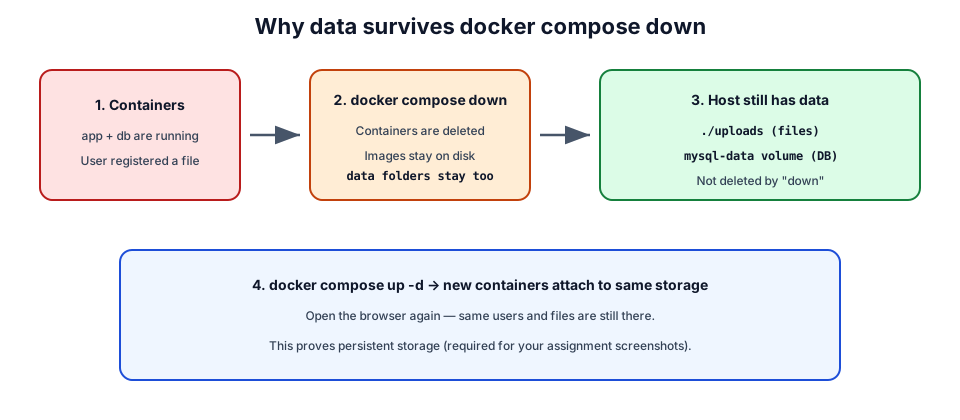
This is exactly what your assignment asks you to prove:
1. Create a user + upload a file.
2. Run `docker compose down` (containers gone).
3. Run `docker compose up -d` (new containers).
4. Data is still there — because it was stored **outside** the containers.
---
# 3. Pulling images vs building images
This part confuses almost every beginner. Read it slowly.

## 3.1 Pulling an image (download)
**Pull** = download a ready-made image from the internet (usually Docker Hub).
Example (you can try this later):
```bash
# Download the official MySQL 8 image
docker pull mysql:8.0
```
What happens:
1. Docker checks: “Do I already have `mysql:8.0`?”
2. If no → downloads layers from Docker Hub.
3. Saves the image on your machine.
4. You can see it with:
```bash
docker images
```
You will also see pulls happen **automatically** when Compose needs an image that is not installed yet.
First time you run the project, Docker will pull things like:
- `mysql:8.0`
- `php:8.2-apache` (PHP path)
- `node:22-alpine` (Node path)
That is normal. It can take a few minutes.
## 3.2 Building an image (create your own)
**Build** = follow **your** `Dockerfile` and create a custom image that contains your app.
```bash
# From php-app or nodejs-app folder
docker compose up --build -d
```
`--build` means: “Build (or rebuild) the app image from the Dockerfile, then start containers.”
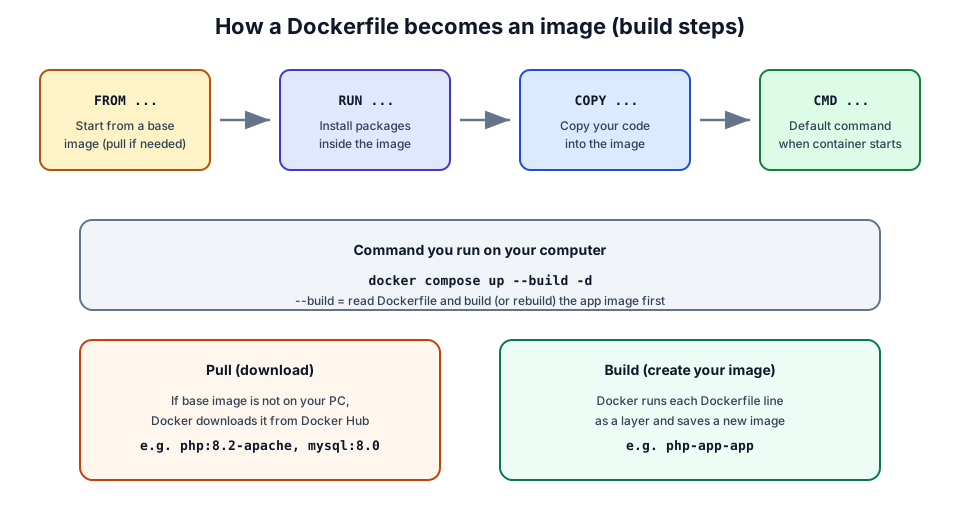
## 3.3 Which images are pulled vs built in this project?
| Image | Pull or build? | Where it comes from |
|-------|----------------|---------------------|
| `mysql:8.0` | **Pull** | Official image from Docker Hub |
| `php:8.2-apache` | **Pull** (base) | Used as `FROM` in PHP Dockerfile |
| `node:22-alpine` | **Pull** (base) | Used as `FROM` in Node Dockerfile |
| `php-app-app` (name may vary) | **Build** | Built from `php-app/Dockerfile` |
| `nodejs-app-app` (name may vary) | **Build** | Built from `nodejs-app/Dockerfile` |
**Rule of thumb:**
- Official software (MySQL, PHP, Node) → usually **pull**
- *Your* application → **build** with a Dockerfile
---
# 4. Dockerfile explained line by line
A **Dockerfile** is a plain text file named exactly `Dockerfile` (no extension).
Each line is an **instruction**. Docker runs them **from top to bottom** when you build.
## 4.1 PHP Dockerfile (`php-app/Dockerfile`)
Open the file in your editor. Full content:
```dockerfile
# Use official PHP with Apache web server
FROM php:8.2-apache
# Install the PHP MySQL extension so PHP can talk to MySQL
RUN docker-php-ext-install pdo pdo_mysql
# Copy our app files into the web server folder
COPY application/ /var/www/html/
# Create uploads folder and allow Apache to write to it
RUN mkdir -p /var/www/html/uploads && chown -R www-data:www-data /var/www/html/uploads
```
### Line-by-line meaning
| Line | Instruction | What it does (beginner words) |
|------|-------------|-------------------------------|
| `FROM php:8.2-apache` | **FROM** | Start from an existing image that already has PHP 8.2 + Apache. If you do not have it, Docker **pulls** it. This is your base layer. |
| `RUN docker-php-ext-install pdo pdo_mysql` | **RUN** | Run a command **while building** the image. Here it installs PHP extensions so PHP can connect to MySQL with PDO. |
| `COPY application/ /var/www/html/` | **COPY** | Copy files from your computer (the `application/` folder next to the Dockerfile) into the image at Apache’s web root. |
| `RUN mkdir -p ... && chown ...` | **RUN** | Create the uploads directory inside the image and give Apache permission to write files there. |
### Common Dockerfile words (PHP path)
| Word | Meaning |
|------|---------|
| `FROM` | Base image — always the first real instruction |
| `RUN` | Execute a shell command at **build time** (install tools, create folders) |
| `COPY` | Copy files from host project into the image |
| `WORKDIR` | (not used here) set the working directory inside the image |
| `EXPOSE` | (not used here) document which port the app listens on |
| `CMD` / `ENTRYPOINT` | (not set here) default process; the PHP image already starts Apache for us |
### Why we need `pdo_mysql`
Without that extension, PHP code like `new PDO("mysql:...")` fails.
The official PHP image is small and does **not** include every extension by default — so we install only what we need.
### What is `/var/www/html/`?
That is the default folder Apache serves as a website inside the `php:8.2-apache` image.
So `application/index.php` becomes the home page at `/`.
---
## 4.2 Node.js Dockerfile (`nodejs-app/Dockerfile`)
```dockerfile
# Use latest Node.js LTS (Alpine = small image)
FROM node:22-alpine
WORKDIR /app
# Copy package manifests first (better Docker layer cache)
COPY package.json package-lock.json ./
# Install exact versions from lock file
RUN npm ci --omit=dev
# Copy app source
COPY application/ ./application/
COPY server.js ./
RUN mkdir -p /app/uploads
EXPOSE 3000
CMD ["node", "server.js"]
```
### Line-by-line meaning
| Line | What it does |
|------|----------------|
| `FROM node:22-alpine` | Start from Node.js 22 on Alpine Linux (small image). Docker **pulls** this if needed. |
| `WORKDIR /app` | “From now on, work inside `/app`.” Same as `cd /app` for later commands. Creates the folder if missing. |
| `COPY package.json package-lock.json ./` | Copy only dependency lists first. Why first? Docker caches layers. If package files did not change, it can skip reinstalling npm packages next build. |
| `RUN npm ci --omit=dev` | Install production npm packages exactly as locked. Runs at **build time**. |
| `COPY application/ ./application/` | Copy the application folder into the image. |
| `COPY server.js ./` | Copy the main server file. |
| `RUN mkdir -p /app/uploads` | Make sure the uploads directory exists. |
| `EXPOSE 3000` | Documents that the app listens on port 3000 (Compose still maps host ports). |
| `CMD ["node", "server.js"]` | When a container starts from this image, run `node server.js`. |
### Why Alpine?
`alpine` images are smaller and faster to download. They use a tiny Linux distro.
For learning, the main downside is slightly different tools (`sh` instead of full `bash` sometimes).
### Why copy package files before the rest of the code?
Docker builds in **layers**. Each instruction is a layer.
1. If you only change `server.js`, Docker reuses the old `npm ci` layer (fast rebuild).
2. If you change `package.json`, Docker re-runs `npm ci` (slower, but correct).
That is a best practice, not magic.
---
## 4.3 Dockerfile instructions cheat sheet (for learning + presentation)
| Instruction | When it runs | Purpose | Example |
|-------------|--------------|---------|---------|
| `FROM` | Build | Base image | `FROM mysql:8.0` |
| `RUN` | Build | Install/configure | `RUN apt-get install ...` |
| `COPY` | Build | Add project files | `COPY app/ /app/` |
| `ADD` | Build | Like COPY (also can extract tar/URL) — prefer COPY for beginners |
| `WORKDIR` | Build | Set current directory | `WORKDIR /app` |
| `ENV` | Build + run | Environment variables | `ENV PORT=3000` |
| `EXPOSE` | Docs | Declares port | `EXPOSE 3000` |
| `CMD` | Container start | Default command | `CMD ["node","server.js"]` |
| `ENTRYPOINT` | Container start | Main process (harder to override) | advanced |
**Build time vs run time (very important):**
- `RUN` happens while creating the image (once).
- `CMD` happens every time a container **starts**.
---
# 5. docker-compose.yml explained (theory only — we do not use it)
> **This project’s run guide does not use Compose.**
> Everything is `docker pull` / `volume create` / `network create` / `build` / `run`.
> Read this section only so you understand what Compose *would* automate.
Compose is a YAML file that defines **multiple containers** as one project.
We recreate the same ideas with plain commands in [MANUAL_STEPS.md](MANUAL_STEPS.md).
## 5.1 PHP Compose (`php-app/docker-compose.yml`) — full walkthrough
```yaml
services:
app:
build: . # Build image from Dockerfile in this folder
ports:
- "8080:80" # Host port 8080 → container port 80
volumes:
- ./uploads:/var/www/html/uploads
depends_on:
- db
networks:
- app-network
environment:
DB_HOST: db
DB_NAME: userdb
DB_USER: appuser
DB_PASS: apppass
db:
image: mysql:8.0 # Pull/use official MySQL image (no Dockerfile for DB)
environment:
MYSQL_ROOT_PASSWORD: rootpass
volumes:
- mysql-data:/var/lib/mysql
networks:
- app-network
ports:
- "3306:3306"
networks:
app-network:
driver: bridge
volumes:
mysql-data:
```
### `services:` block
A **service** is a container definition.
| Service name | Role |
|--------------|------|
| `app` | Your web application |
| `db` | MySQL database |
The service name becomes a **hostname** on the Docker network.
That is why PHP/Node use `DB_HOST=db` — not `localhost`.
> **Why not localhost?**
> Inside the app container, `localhost` means “this container only,” not the MySQL container.
> Docker DNS maps the name `db` to the MySQL container IP.
### `build: .`
Means: “Build an image using the Dockerfile in the current directory (`.` = this folder).”
### `image: mysql:8.0`
Means: “Do not build. Use/pull this existing image.”
### `ports: "8080:80"`
Format is always:
```text
HOST_PORT:CONTAINER_PORT
```
| Side | Meaning |
|------|---------|
| Left (`8080`) | Port on your Windows/WSL machine |
| Right (`80`) | Port inside the container (Apache default) |
So browser → `http://localhost:8080` → Apache on container port 80.
Node version uses `"3000:3000"` and MySQL host port `"3307:3306"` so both stacks can exist without fighting over ports.
### `volumes:`
Two kinds appear in this project:
**1) Bind mount (uploads)**
```yaml
- ./uploads:/var/www/html/uploads
```
| Host path | Container path |
|-----------|----------------|
| `./uploads` (folder next to compose file) | `/var/www/html/uploads` |
Files written by the app appear in your project folder. They survive container delete.
**2) Named volume (MySQL)**
```yaml
- mysql-data:/var/lib/mysql
```
Docker manages a volume named `mysql-data`. MySQL stores its data files there.
Survives `docker compose down`. Only wiped if you run `docker compose down -v`.
> Why named volume for MySQL on WSL?
> Binding MySQL data to `/mnt/c/...` (Windows drive) often causes permission errors. Named volumes live in Linux Docker storage and work reliably.
### `depends_on: - db`
Start `db` before `app`.
Note: this does **not** wait until MySQL is fully ready — only until the container starts.
That is why the Node app retries DB connection, and why you may need to wait/restart PHP on first boot.
### `environment:`
Environment variables inside the container.
Your PHP/Node code reads them (`getenv` / `process.env`) for DB host, name, user, password.
### `networks:`
Both services join `app-network` so they can talk.
`driver: bridge` is the normal local network type.
---
## 5.2 Node Compose differences (quick)
Same ideas as PHP, except:
| Item | Node value | Why |
|------|------------|-----|
| App port | `3000:3000` | Express listens on 3000 |
| MySQL host port | `3307:3306` | Avoid clash with PHP’s 3306 |
| Upload mount | `./uploads:/app/uploads` | Matches Dockerfile `WORKDIR /app` |
| Build network | `network: host` (under build) | Helps npm install on some WSL setups |
---
# 6. Docker volumes (including creating them manually)
Volumes answer: **“Where does my data live so it is not deleted with the container?”**

## 6.1 Three storage types (know these for the exam / presentation)
| Type | What it is | Survives `docker compose down`? | Used in this project for |
|------|------------|----------------------------------|---------------------------|
| **Named volume** | Docker-managed storage with a name | **Yes** (unless you use `-v`) | MySQL data (`mysql-data`) |
| **Bind mount** | A real folder on your PC mounted into the container | **Yes** (it is just your folder) | Uploads (`./uploads`) |
| **Container filesystem only** | Files only inside the container | **No** | We avoid this for important data |
## 6.2 What this project does for storage
### Uploads = bind mount (folder you can see)
In Compose:
```yaml
# PHP
volumes:
- ./uploads:/var/www/html/uploads
# Node
volumes:
- ./uploads:/app/uploads
```
Meaning:
| Left side | Right side |
|-----------|------------|
| `./uploads` on **your computer** | Path **inside** the container |
When the app saves a file, you can open the project’s `uploads/` folder and see it. Perfect for assignment screenshots.
**Create the host folder manually (good practice):**
```bash
cd /mnt/c/Users/hasin/Desktop/ass/php-app # or nodejs-app
mkdir -p uploads
ls -la uploads
```
If the folder already exists, that is fine. Compose will still mount it.
### MySQL = named volume
```yaml
db:
volumes:
- mysql-data:/var/lib/mysql
volumes:
mysql-data:
```
- Left: volume name `mysql-data`
- Right: MySQL’s data directory **inside** the container (`/var/lib/mysql`)
Docker stores that data on the host Linux side (WSL). You do not edit those files by hand.
## 6.3 Create a named volume **manually** (step by step)
Compose can create volumes for you automatically.
For learning (and screenshots), create one yourself:
### Step V1 — Create the volume
```bash
# Create a named volume
docker volume create mysql-data
```
What you should see: Docker prints the name:
```text
mysql-data
```
### Step V2 — List volumes
```bash
docker volume ls
```
Look for `mysql-data` in the list (DRIVER usually `local`).
### Step V3 — Inspect the volume (great screenshot)
```bash
docker volume inspect mysql-data
```
You will see JSON with fields like:
| Field | Meaning |
|-------|---------|
| `Name` | `mysql-data` |
| `Driver` | `local` |
| `Mountpoint` | Real path on the Docker host where data is stored |
| `Labels` / `Options` | Extra metadata (often empty) |
### Step V4 — How Compose uses your volume
When your `docker-compose.yml` says:
```yaml
volumes:
mysql-data:
```
Compose looks for a volume with that name in the **project**.
Important detail:
- Compose usually prefixes the project folder name.
Example: folder `php-app` → volume often named **`php-app_mysql-data`**
- A bare `docker volume create mysql-data` creates exactly `mysql-data` (no prefix)
**For this assignment you can use either approach:**
**A) Let Compose create it (simplest for running the app)**
```bash
cd /mnt/c/Users/hasin/Desktop/ass/php-app
docker compose up -d
docker volume ls
# expect something like: php-app_mysql-data
docker volume inspect php-app_mysql-data
```
**B) Create manually and attach by name (learning mode)**
You can declare an **external** volume so Compose uses one you already made:
```yaml
volumes:
mysql-data:
external: true
name: mysql-data
```
Only do this if you understand you must run `docker volume create mysql-data` **before** `docker compose up`.
The project files currently use the **simple** form (Compose creates/manages `mysql-data` for the project). That is fine for submission.
### Step V5 — See a volume in use
```bash
# From php-app or nodejs-app while stack is running
docker compose ps
docker volume ls
docker inspect $(docker compose ps -q db) --format '{{ json .Mounts }}'
```
That shows the `db` container’s mounts, including the MySQL volume.
### Step V6 — Delete a volume (careful — wipes MySQL data)
```bash
# Stop stack first
docker compose down
# Remove the Compose-managed volume (project prefix)
docker volume rm php-app_mysql-data
# or for node:
# docker volume rm nodejs-app_mysql-data
# Or remove everything Compose made for this project, including volumes:
docker compose down -v
```
| Command | Effect on volumes |
|---------|-------------------|
| `docker compose down` | Containers gone; **named volumes kept** |
| `docker compose down -v` | Containers gone; **named volumes deleted** |
| `docker volume rm NAME` | Delete one volume by name |
## 6.4 Manual demo you can run (volumes only)
```bash
# 1) Create a practice volume
docker volume create practice-data
# 2) Run a temporary container that writes a file INTO the volume
docker run --rm -v practice-data:/data alpine sh -c "echo hello-from-volume > /data/note.txt"
# 3) New container, same volume — file is still there
docker run --rm -v practice-data:/data alpine cat /data/note.txt
# prints: hello-from-volume
# 4) Cleanup
docker volume rm practice-data
```
This proves: **volume data is not stored only inside one container**.
## 6.5 Commands cheat sheet — volumes
| Goal | Command |
|------|---------|
| Create named volume | `docker volume create NAME` |
| List volumes | `docker volume ls` |
| Inspect volume | `docker volume inspect NAME` |
| Remove volume | `docker volume rm NAME` |
| Remove unused volumes | `docker volume prune` |
| Compose down keep data | `docker compose down` |
| Compose down delete named volumes | `docker compose down -v` |

---
# 7. Docker networking (full beginner explanation)
Networking answers: **“How do containers find and talk to each other?”**

## 7.1 The problem without Docker networking
You have two containers:
- `app` (PHP or Node)
- `db` (MySQL)
If they are isolated, the app cannot store users.
They need a **shared network**, like two PCs on the same Wi‑Fi.
## 7.2 Network types you should know
| Type | Simple meaning | When you see it |
|------|----------------|-----------------|
| **bridge** | Virtual switch for containers on one host | Default for custom project networks |
| **host** | Container shares the host’s network stack | Sometimes used for special cases / builds |
| **none** | No networking | Rare; locked down containers |
| **Default bridge** | Docker’s built-in `bridge` network | Old style; name DNS is weaker |
**This project uses a custom bridge network** named `app-network` (Compose may show it as `php-app_app-network` or `nodejs-app_app-network`).
Why custom bridge?
- Containers get **DNS names** = service names (`app`, `db`)
- Clean isolation from other projects
- Easy to inspect for screenshots
## 7.3 How this project’s network works
In `docker-compose.yml`:
```yaml
services:
app:
networks:
- app-network
environment:
DB_HOST: db # <-- hostname = service name
db:
networks:
- app-network
networks:
app-network:
driver: bridge
```
### What happens at runtime
1. Compose creates network `…_app-network` if needed.
2. Starts `db` and attaches it to that network (hostname **`db`**).
3. Starts `app` and attaches it to the same network.
4. Inside the app, code connects to host `db` on port `3306` (MySQL’s internal port).
5. Docker’s embedded DNS resolves `db` → MySQL container IP.
### Why `DB_HOST` is not `localhost`
| From where | What `localhost` means |
|------------|-------------------------|
| Inside **app** container | Only the app container |
| Inside **db** container | Only the MySQL container |
| On **Windows** browser / SQLyog | Your PC |
So the app must use the **service name** `db`, not `localhost`.
## 7.4 Ports vs network (do not mix these up)
Two different ideas:
### A) Container-to-container (Docker network)
- Path: `app` → `db:3306`
- Uses **service name** on the private Docker network
- **No** need to publish ports for this
### B) Your PC → container (published ports)
```yaml
ports:
- "8080:80" # browser → app
- "3306:3306" # SQLyog → MySQL (PHP path)
- "3307:3306" # SQLyog → MySQL (Node path)
```
Format: `HOST:CONTAINER`
| You open on Windows | Goes to |
|---------------------|---------|
| `http://localhost:8080` | app container port 80 (PHP/Apache) |
| `http://localhost:3000` | app container port 3000 (Node) |
| SQLyog `localhost:3306` | db container port 3306 (PHP stack) |
| SQLyog `localhost:3307` | db container port 3306 (Node stack) |
**Teaching line for presentation:**
“Containers talk to each other on a private network by name; we only publish ports so *humans and tools on the host* can reach them.”
## 7.5 Create a network **manually** (step by step)
### Step N1 — Create a bridge network
```bash
docker network create app-network
```
### Step N2 — List networks
```bash
docker network ls
```
You should see `app-network` plus defaults like `bridge`, `host`, `none`.
### Step N3 — Inspect the network
```bash
docker network inspect app-network
```
Look for:
| Key | Meaning |
|-----|---------|
| `Name` | Network name |
| `Driver` | `bridge` |
| `IPAM.Config.Subnet` | Private IP range for containers |
| `Containers` | Which containers are attached (empty until you run some) |
### Step N4 — Mini lab: two containers on one network
```bash
# Terminal: create network (skip if already created)
docker network create demo-net
# Start a tiny web server on demo-net, name it web
docker run -d --name web --network demo-net nginx:alpine
# From another container on the SAME network, reach host name "web"
docker run --rm --network demo-net alpine wget -qO- http://web:80 | head -n 5
# Cleanup
docker rm -f web
docker network rm demo-net
```
If that prints HTML from nginx, you proved **name-based networking**.
### Step N5 — Inspect the project network (for assignment)
After `docker compose up -d` in `php-app`:
```bash
docker network ls
docker network inspect php-app_app-network
```
For Node:
```bash
docker network inspect nodejs-app_app-network
```
In the inspect JSON, under `Containers`, you should see both app and db.
**Screenshot this** — it is direct proof of Docker Networking.
### Step N6 — Connect / disconnect (advanced but useful)
```bash
# Attach a running container to a network
docker network connect app-network CONTAINER_NAME
# Detach
docker network disconnect app-network CONTAINER_NAME
```
Compose already does attach for you when services list `networks:`.
### Step N7 — Delete a network
```bash
# Network must have no containers attached
docker network rm app-network
# Or remove unused networks
docker network prune
```
Compose removes its project network on `docker compose down` (when nothing else uses it).
## 7.6 Manual network vs Compose network naming
| How you create it | Typical name |
|-------------------|--------------|
| `docker network create app-network` | `app-network` |
| Compose project `php-app` + network key `app-network` | `php-app_app-network` |
| Compose project `nodejs-app` + network key `app-network` | `nodejs-app_app-network` |
Both are custom bridge networks. Compose’s prefix avoids name clashes between projects.
## 7.7 Networking commands cheat sheet
| Goal | Command |
|------|---------|
| Create bridge network | `docker network create NAME` |
| List networks | `docker network ls` |
| Inspect network | `docker network inspect NAME` |
| Connect container | `docker network connect NET CONTAINER` |
| Disconnect container | `docker network disconnect NET CONTAINER` |
| Remove network | `docker network rm NAME` |
| Remove unused | `docker network prune` |
| See compose network name | `docker network ls \| grep app-network` |
## 7.8 Common networking mistakes
| Mistake | Symptom | Fix |
|---------|---------|-----|
| App uses `localhost` for MySQL | Connection refused | Set `DB_HOST=db` |
| Containers on different networks | Cannot resolve `db` | Put both on `app-network` |
| Wrong published port for SQLyog | Cannot connect from Windows | PHP `3306`, Node `3307` |
| MySQL not ready yet | App errors on first boot | Wait / `docker compose restart app` |
| Firewall / Docker not running | Nothing listens on ports | `sudo service docker start` |
---
# 8. One-time setup: WSL + Docker on Windows
Do this **once**. After that, skip to Path 1 or Path 2.
## Step 8.1 — Install WSL + Ubuntu
1. Open **PowerShell as Administrator** (right-click Start → Windows PowerShell / Terminal → Run as administrator).
2. Run:
```powershell
wsl --install
```
3. Restart the PC if Windows asks.
4. Open **Ubuntu** from the Start menu.
5. Create a Linux username and password when asked.
(When typing the password, nothing is shown — that is normal.)
Check you are in Ubuntu:
```bash
cat /etc/os-release
```
You should see Ubuntu in the text.
## Step 8.2 — Install Docker Engine inside Ubuntu
Copy and paste these blocks one by one into Ubuntu.
```bash
# Update package lists
sudo apt update
# Tools needed to add Docker’s secure repository
sudo apt install -y ca-certificates curl gnupg
# Folder for Docker’s signing key
sudo install -m 0755 -d /etc/apt/keyrings
# Download Docker’s official GPG key
curl -fsSL https://download.docker.com/linux/ubuntu/gpg | sudo gpg --dearmor -o /etc/apt/keyrings/docker.gpg
# Make key readable
sudo chmod a+r /etc/apt/keyrings/docker.gpg
# Add Docker apt repository for your Ubuntu version
echo \
"deb [arch=$(dpkg --print-architecture) signed-by=/etc/apt/keyrings/docker.gpg] https://download.docker.com/linux/ubuntu \
$(. /etc/os-release && echo "$VERSION_CODENAME") stable" | \
sudo tee /etc/apt/sources.list.d/docker.list > /dev/null
# Refresh package lists (now includes Docker)
sudo apt update
# Install Docker Engine + Compose plugin
sudo apt install -y docker-ce docker-ce-cli containerd.io docker-buildx-plugin docker-compose-plugin
```
## Step 8.3 — Run Docker without typing sudo every time (recommended)
```bash
# Add your Linux user to the docker group
sudo usermod -aG docker $USER
# Apply group change in this terminal
newgrp docker
```
(If group still fails later, close Ubuntu and open it again.)
## Step 8.4 — Start Docker and test it
```bash
# Start Docker background service
sudo service docker start
# Check versions
docker --version
docker compose version
# Pull + run a tiny test image (downloads if needed)
docker run --rm hello-world
```
| Command | What it means |
|---------|----------------|
| `sudo service docker start` | Start the Docker daemon |
| `docker --version` | Docker client is installed |
| `docker compose version` | Compose plugin is installed |
| `docker run --rm hello-world` | **Pull** (if needed) the `hello-world` image, **run** a container, print success, then remove the container (`--rm`) |
If you see a “Hello from Docker!” message, Docker works.
> **Every new Ubuntu terminal:** if Docker says it cannot connect, run:
>
> ```bash
> sudo service docker start
> ```
## Step 8.5 — Go to the project folder in WSL
Your Windows Desktop is available under `/mnt/c/...` in Ubuntu.
```bash
cd /mnt/c/Users/hasin/Desktop/ass
# List files
ls
```
You should see something like:
```text
assignment.md GUIDE.md nodejs-app php-app README.md SETUP_DATABASE.md
```
---
# 9. PATH 1 — PHP
**Removed from this guide.** Create files + run Docker manually:
→ **[MANUAL_STEPS.md — Path A (PHP)](MANUAL_STEPS.md#path-a--php-create-everything-manually)**
Includes linked files: `db.php`, `index.php`, `create.php`, `edit.php`, `delete.php`, `Dockerfile`.
Old Compose notes (do not use)
The following used to document Compose. Kept collapsed only for archive. **Do not follow for the assignment demo.**
## Step P1 — Open the PHP project
```bash
cd /mnt/c/Users/hasin/Desktop/ass/php-app
ls -la
```
You should see:
```text
Dockerfile
docker-compose.yml
application/
uploads/
...
```
### Folder map
```text
php-app/
├── Dockerfile ← recipe for app image
├── docker-compose.yml ← app + MySQL + network + volumes
├── application/
│ ├── db.php ← DB connection only
│ ├── index.php ← READ (list users)
│ ├── create.php ← CREATE + upload
│ ├── edit.php ← UPDATE
│ └── delete.php ← DELETE
├── uploads/ ← persistent files on host
└── (mysql-data is a Docker named volume, not always a folder you manage by hand)
```
## Step P2 — Make sure Docker is running
```bash
sudo service docker start
docker info > /dev/null && echo "Docker is ready"
```
## Step P3 — Build images and start containers
```bash
docker compose up --build -d
```
### What this single command does (slowly)
1. Reads `docker-compose.yml`
2. Sees `db` needs `mysql:8.0` → **pulls** if missing
3. Sees `app` has `build: .` → reads `Dockerfile`
4. Dockerfile `FROM php:8.2-apache` → **pulls** base if missing
5. Runs `RUN` / `COPY` steps → **builds** your app image
6. Creates network `app-network`
7. Creates volume `mysql-data` if needed
8. Starts `db` container, then `app` container
9. `-d` = detached (runs in background; you get your terminal back)
First run can take several minutes. Be patient while layers download.
## Step P4 — Check containers are up
```bash
docker compose ps
```
Expect something like:
| Service | State | Ports |
|---------|-------|-------|
| app | Up | `0.0.0.0:8080->80/tcp` |
| db | Up | `0.0.0.0:3306->3306/tcp` |
Watch logs if unsure:
```bash
# Both services (Ctrl+C stops watching, not the containers)
docker compose logs -f
# Only database
docker compose logs -f db
```
For MySQL, wait until logs show something like **ready for connections**.
## Step P5 — Create the database with SQLyog (required)
Right now MySQL only has **root**. Your app expects:
- database: `userdb`
- user: `appuser` / password: `apppass`
- table: `users`
Follow the full SQLyog guide:
→ **[SETUP_DATABASE.md](SETUP_DATABASE.md)**
Quick connection settings for PHP path:
| Field | Value |
|-------|-------|
| Host | `127.0.0.1` |
| User | `root` |
| Password | `rootpass` |
| Port | **3306** |
Run the SQL from section 3 of that file (create DB, user, table).
## Step P6 — Open the app
On Windows, open a browser:
**http://localhost:8080**
You should see **User Management (PHP + Docker)** and an empty table (or users if you already added some).
If you see a database connection error, go back to Step P5 — the DB/table is not ready yet. You can also restart the app:
```bash
docker compose restart app
```
## Step P7 — Test CRUD + file upload
### Create
1. Click **+ Register New User**
2. Enter name, email, password
3. Optionally choose a small image or document
4. Click **Register**
5. You return to the list with the new user
### Read
Home page lists all users from MySQL.
### Update
1. Click **Edit**
2. Change fields and/or upload a new file
3. Leave password blank to keep the old password
4. Save
### Delete
1. Click **Delete**
2. Confirm
3. User (and file if any) is removed
## Step P8 — Prove Docker concepts (for screenshots)
### Images (pull + build proof)
```bash
docker images
```
Take a screenshot showing at least:
- `mysql` / `mysql:8.0`
- `php` / `php:8.2-apache` (pulled base)
- your project image (often named like `php-app-app`)
### Running containers
```bash
docker compose ps
# or
docker ps
```
### Network
```bash
docker network ls
docker network inspect php-app_app-network
```
In the inspect output, you should see both `app` and `db` containers listed under Containers.
That is your **custom Docker network** proof.
### Volumes / host storage
```bash
# Uploaded files on host
ls -la uploads/
```
```bash
# Named volume exists
docker volume ls
docker volume inspect php-app_mysql-data
```
### Persistence test (assignment critical)
1. Register a user + upload a file.
2. Note a filename under `uploads/`.
3. Stop and remove containers:
```bash
docker compose down
```
4. Confirm data still on host:
```bash
ls uploads/
docker volume ls # mysql-data still listed
```
5. Start again:
```bash
docker compose up -d
```
6. Open http://localhost:8080 — same users/files should still be there.
Screenshot: list page before down, command `down`, list page after `up`.
### Optional: query MySQL from terminal
```bash
docker compose exec db mysql -u appuser -papppass userdb -e "SELECT id, name, email, file_name FROM users;"
```
## Step P9 — Stop PHP stack
```bash
docker compose down
```
This removes containers/network for this project but keeps images and volume data.
To wipe DB volume completely (fresh MySQL):
```bash
docker compose down -v
```
---
# 10. PATH 2 — Node.js
**Removed from this guide.** Create files + run Docker manually:
→ **[MANUAL_STEPS.md — Path B (Node)](MANUAL_STEPS.md#path-b--nodejs-create-everything-manually)**
Includes linked files: `package.json`, `server.js`, `Dockerfile`.
Old Compose notes (do not use)
## Step N1 — Open the project
```bash
cd /mnt/c/Users/hasin/Desktop/ass/nodejs-app
ls -la
```
### Folder map
```text
nodejs-app/
├── Dockerfile
├── docker-compose.yml
├── package.json
├── package-lock.json
├── server.js ← routes + HTML in one beginner file
├── application/ ← placeholder / structure folder
└── uploads/
```
Port reminder:
| Thing | PHP | Node |
|-------|-----|------|
| Web URL | http://localhost:8080 | http://localhost:3000 |
| MySQL from SQLyog | port **3306** | port **3307** |
Stop the other stack first if ports conflict:
```bash
# In the other project folder
docker compose down
```
## Step N2 — Start Docker
```bash
sudo service docker start
```
## Step N3 — Build and start
```bash
docker compose up --build -d
```
What gets pulled/built:
- Pull `mysql:8.0` (if needed)
- Pull `node:22-alpine` (if needed)
- Build your Node app image (`npm ci`, copy files, etc.)
- Start `db` + `app` on `app-network`
## Step N4 — Check status / logs
```bash
docker compose ps
docker compose logs -f app
```
Wait until you see a message that MySQL connected (or that it is waiting, then succeeds).
First MySQL boot can take 20–60 seconds.
## Step N5 — Create database in SQLyog
→ **[SETUP_DATABASE.md](SETUP_DATABASE.md)**
Connection for Node path:
| Field | Value |
|-------|-------|
| Host | `127.0.0.1` |
| User | `root` |
| Password | `rootpass` |
| Port | **3307** |
Same SQL as PHP (create `userdb`, `appuser`, `users` table).
## Step N6 — Open the app
**http://localhost:3000**
## Step N7 — CRUD + upload
Same browser flow as PHP: Register → list → Edit → Delete.
## Step N8 — Docker proofs
```bash
docker images
docker compose ps
docker network ls
docker network inspect nodejs-app_app-network
ls -la uploads/
docker volume ls
```
Persistence test:
```bash
# after creating a user + file
docker compose down
ls uploads/
docker compose up -d
# refresh browser — data remains
```
Query DB:
```bash
docker compose exec db mysql -u appuser -papppass userdb -e "SELECT id, name, email, file_name FROM users;"
```
## Step N9 — Stop
```bash
docker compose down
```
---
# 11. Database setup (SQLyog) — required
Do not skip this. Full guide with SQL:
**[SETUP_DATABASE.md](SETUP_DATABASE.md)**
### Order that always works
1. `docker compose up -d db` (or full `up`)
2. Wait for “ready for connections”
3. Connect SQLyog as `root` / `rootpass` on the correct port
4. Run the setup SQL (database + user + table)
5. Start/restart app: `docker compose up --build -d`
6. Open browser
### Credentials (must match Compose env vars)
| Item | Value |
|------|--------|
| Root (SQLyog only) | `root` / `rootpass` |
| Database | `userdb` |
| App user | `appuser` / `apppass` |
| Table | `users` |
Passwords stored by the apps are **hashed** (not plain text).
---
# 12. Screenshots / proof checklist for the assignment
Use this as a capture list:
| # | Screenshot | How to get it |
|---|------------|---------------|
| 1 | Project structure | File Explorer or `ls -la` in project folder |
| 2 | Dockerfile | Open file in editor |
| 3 | docker-compose.yml | Open file in editor |
| 4 | Images list | `docker images` |
| 5 | Running containers | `docker compose ps` |
| 6 | Network | `docker network ls` + `docker network inspect ..._app-network` |
| 7 | Create volume manually (optional demo) | `docker volume create` + `docker volume ls` + `inspect` |
| 8 | Volume in use | `docker volume ls` + `ls uploads/` + inspect MySQL volume |
| 9 | User registration page | Browser create form |
| 10 | User list after create | Browser home |
| 11 | File upload | List showing file name / download |
| 12 | MySQL connectivity | SQLyog `SELECT * FROM users;` or `docker compose exec db mysql ...` |
| 13 | Persistence | Before `down` → after `up` same data |
| 14 | Manual network lab (optional) | `docker network create` / inspect with containers attached |
---
# 13. Useful commands cheat sheet
Run these from inside `php-app/` or `nodejs-app/`.
| Goal | Command |
|------|---------|
| Start Docker daemon | `sudo service docker start` |
| Start stack (background) | `docker compose up -d` |
| Start + rebuild app image | `docker compose up --build -d` |
| Stop & remove containers | `docker compose down` |
| Stop & also delete named volumes | `docker compose down -v` |
| Status | `docker compose ps` |
| Logs (live) | `docker compose logs -f` |
| Logs for one service | `docker compose logs -f app` |
| Rebuild app only | `docker compose build app` |
| Shell into app (PHP) | `docker compose exec app bash` |
| Shell into app (Node Alpine) | `docker compose exec app sh` |
| MySQL shell | `docker compose exec db mysql -u appuser -papppass userdb` |
| List containers | `docker ps -a` |
| List images | `docker images` |
| Pull an image manually | `docker pull mysql:8.0` |
| Create named volume | `docker volume create NAME` |
| List volumes | `docker volume ls` |
| Inspect volume | `docker volume inspect NAME` |
| Remove volume | `docker volume rm NAME` |
| Create network | `docker network create NAME` |
| List networks | `docker network ls` |
| Inspect network | `docker network inspect NAME` |
| Remove unused images | `docker image prune` |
### After you change application code
```bash
docker compose up --build -d
```
---
# 14. Troubleshooting
### “Cannot connect to the Docker daemon”
```bash
sudo service docker start
```
### Port already in use
```bash
# Example: who uses 8080
sudo ss -tlnp | grep 8080
```
Stop the other project with `docker compose down` in its folder.
### App cannot connect to MySQL
```bash
docker compose logs db
# Wait until ready, then:
docker compose restart app
```
Also confirm you created `userdb` + `appuser` + `users` via SQLyog.
### Permission errors on uploads
```bash
sudo chown -R $USER:$USER uploads
chmod -R 777 uploads
```
(`777` is only for local student demos.)
### Browser cannot open localhost from Windows
Check:
```bash
docker compose ps
```
Ports should show `0.0.0.0:8080->80` or `0.0.0.0:3000->3000`.
WSL2 normally publishes these to Windows automatically.
### Build fails while pulling / network errors
Retry:
```bash
docker compose pull
docker compose up --build -d
```
### Reset everything clean for a demo
```bash
docker compose down -v
rm -rf uploads/*
docker compose up --build -d
# Then recreate DB with SQLyog (SETUP_DATABASE.md)
```
---
# 15. Presentation tips
Suggested demo order for video (**manual path** — recommended):
1. What is Docker? Image vs container.
2. Live: `docker pull mysql:8.0` + base image (`php:8.2-apache` or `node:22-alpine`).
3. `docker network create ba-docker-net` → `inspect`.
4. `docker volume create` (mysql + uploads) → `ls` → `inspect`.
5. Paste Dockerfile piece by piece (`FROM`, `RUN`, `COPY`, `CMD`).
6. `docker build -t ba-docker-php .` (or node).
7. `docker run` MySQL (volume + network alias `db`) → SQLyog setup.
8. `docker run` app (env + uploads volume) → CRUD + upload.
9. `docker rm -f` containers → run again with **same volumes** → data remains.
10. Optional: mention Compose is only a shortcut for the same steps.
Full script: **[MANUAL_STEPS.md](MANUAL_STEPS.md)**
### Quick copy-paste outline (PHP manual)
```bash
cd /mnt/c/Users/hasin/Desktop/ass/php-app
sudo service docker start
docker pull mysql:8.0
docker pull php:8.2-apache
docker network create ba-docker-net
docker volume create ba-docker-mysql
docker volume create ba-docker-uploads
# paste Dockerfile pieces → then:
docker build -t ba-docker-php .
# docker run MySQL, SQLyog, docker run app — see MANUAL_STEPS.md
```
### Quick copy-paste outline (Node manual)
```bash
cd /mnt/c/Users/hasin/Desktop/ass/nodejs-app
sudo service docker start
docker pull mysql:8.0
docker pull node:22-alpine
docker network create ba-docker-net
docker volume create ba-docker-mysql-node
docker volume create ba-docker-uploads-node
# paste Dockerfile pieces → then:
docker build -t ba-docker-node .
# full run commands in MANUAL_STEPS.md
```
---
## Which path should you submit?
Either path fully meets the assignment. Pick **one** for GitHub + video.
| If you prefer… | Choose |
|----------------|--------|
| Simple PHP files + Apache | **PHP path** |
| One JavaScript `server.js` | **Node.js path** |
Both are intentionally beginner-level so the focus stays on **Docker concepts**.
---
## Related files
| File | Purpose |
|------|---------|
| **[guide.html](guide.html)** | **Beautiful HTML/CSS version of this whole guide** (open in browser) |
| [SETUP_DATABASE.md](SETUP_DATABASE.md) | SQLyog + SQL to create DB/user/table |
| [assignment.md](assignment.md) | Original assignment text |
| [README.md](README.md) | Short project overview |
| `guide-images/` | Pictures used in this guide |
You now have the full path from “I am new” → install Docker → understand Dockerfile → volumes (manual) → networking → pull/build images → run Compose → create DB → use the app → prove persistence. Follow the steps in order and you will cover every required concept.